
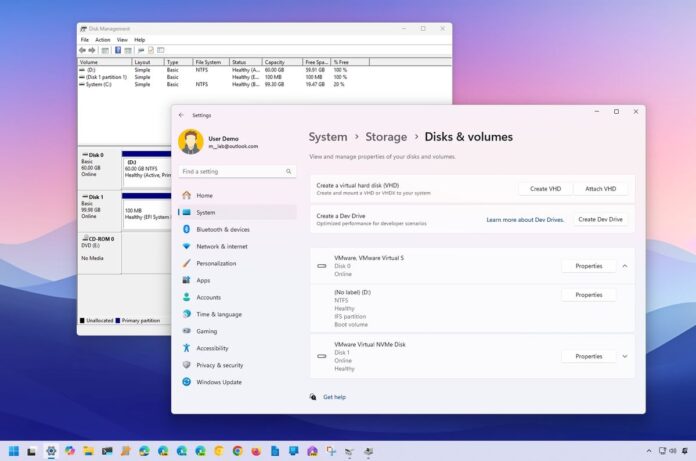
On Windows 11, the system can automatically recognize and set up most storage drives, including hard disk drives (HDD), solid-state drives (SSD), and external USB hard drives (as well as flash drives). However, if the hard drive doesn’t show on File Explorer, you will have to perform different troubleshooting steps to resolve the issue.
For instance, if File Explorer fails to list one of the hard drives, it could be a physical connection problem or missing configuration. You could be trying to set up a drive from another device, and depending on the configuration, it may not appear on your computer. The partition could have gotten corrupted, or it was never configured in the first place.
Whatever the issue might be, Windows 11 provides the tools to troubleshoot virtually any problem to make the drive accessible through the Settings app, Disk Management, Device Manager, and Command Prompt.
In this how-to guide, I will walk you through the steps to troubleshoot and fix (most) problems causing File Explorer not to show a specific hard drive on Windows 11.
How to fix missing storage on File Explorer via physical troubleshooting
The system may not be able to show a particular drive on File Explorer for many reasons, and before you start changing settings, it’s recommended to check the physical connection with the storage:
- Check the storage is correctly connected to the device and receiving power.
- If this is an external USB hard drive, disconnect it and try a different USB port. For example, if the drive is connected using a port in the back, try the USB ports in the front of the computer case. If you use a USB hub, connect the drive directly to the machine, as the issue could be the hub not supplying the correct amount of power or another problem.
- If it is an internal hard drive, ensure the data and power cables (if applicable) are securely connected to the drive, motherboard, and power supply. Before getting your hands inside the case, power off and unplug the computer.
- Connect the hard drive to another machine to check whether the problem is the hard drive or the computer.
- Access the computer’s Unified Extensible Firmware Interface (UEFI) and ensure the firmware detects the storage. The motherboard firmware can be different per manufacturer and even per device model. As such, check the manufacturer support website for more specific instructions.
After checking for physical problems, you can proceed to fix the most common problem preventing File Explorer from showing a hard drive on Windows 11.
How to fix missing storage on File Explorer via Device Manager
It doesn’t happen often, but the hard drive could be disabled, which can be quickly resolved using Device Manager.
To enable a storage drive from Device Manager, use these steps:
-
Open
Start
. -
Search for
Device Manager
and click the top result to open the app. -
Expand the
Disk drives
branch. -
Right-click the hard drive in question and select the
Properties
option.
(Image credit: Mauro Huculak)
-
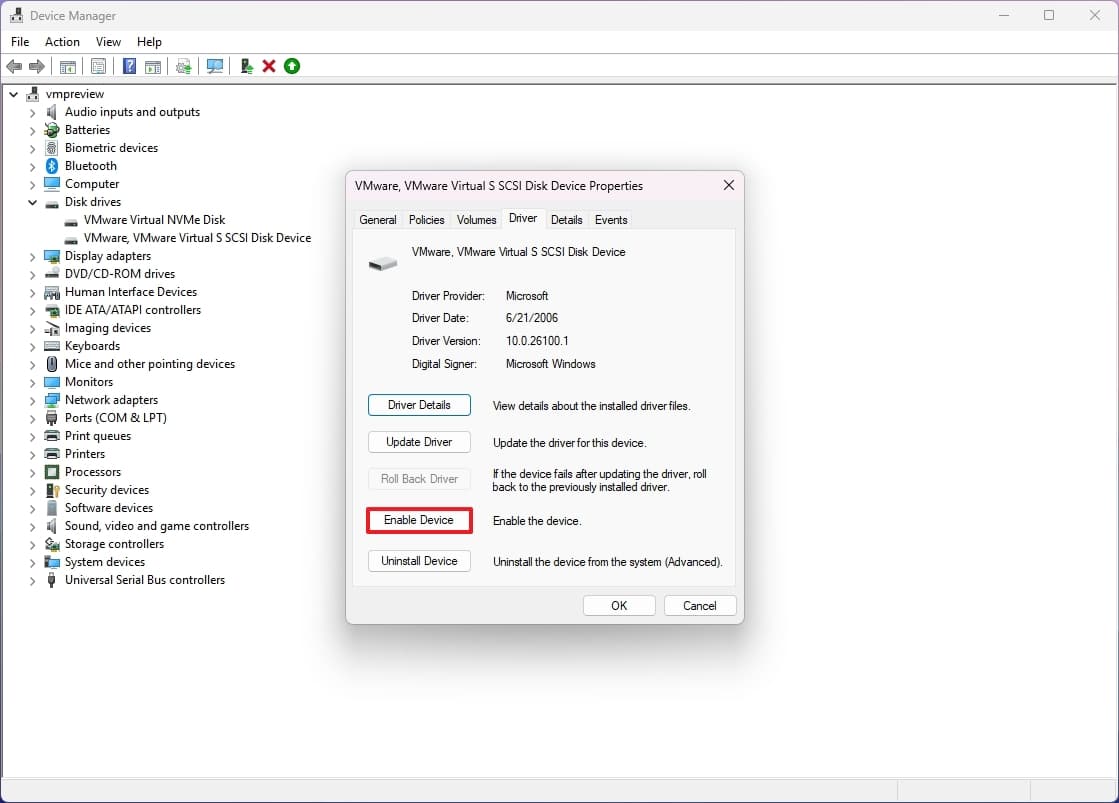
Click the
Driver
tab. -
Click the
Enable Device
button.
(Image credit: Mauro Huculak)
-
Click the
OK
button.
After completing the steps, the drive should appear on File Explorer.
How to fix missing storage on File Explorer via Disk Management
On virtually any version of Windows, some requirements need to be met for a drive to appear on File Explorer. First, the storage must be online and initialized. Also, it has to have a partition and a drive letter assigned, or it should be mounted as a folder.
If you have to configure the hard drive, you can do this from the Disk Management app.
Change drive to online
To bring the drive online on Windows 11, use these steps:
-
Open
Start
. -
Search for
Disk Management
and click the top result to open the app. -
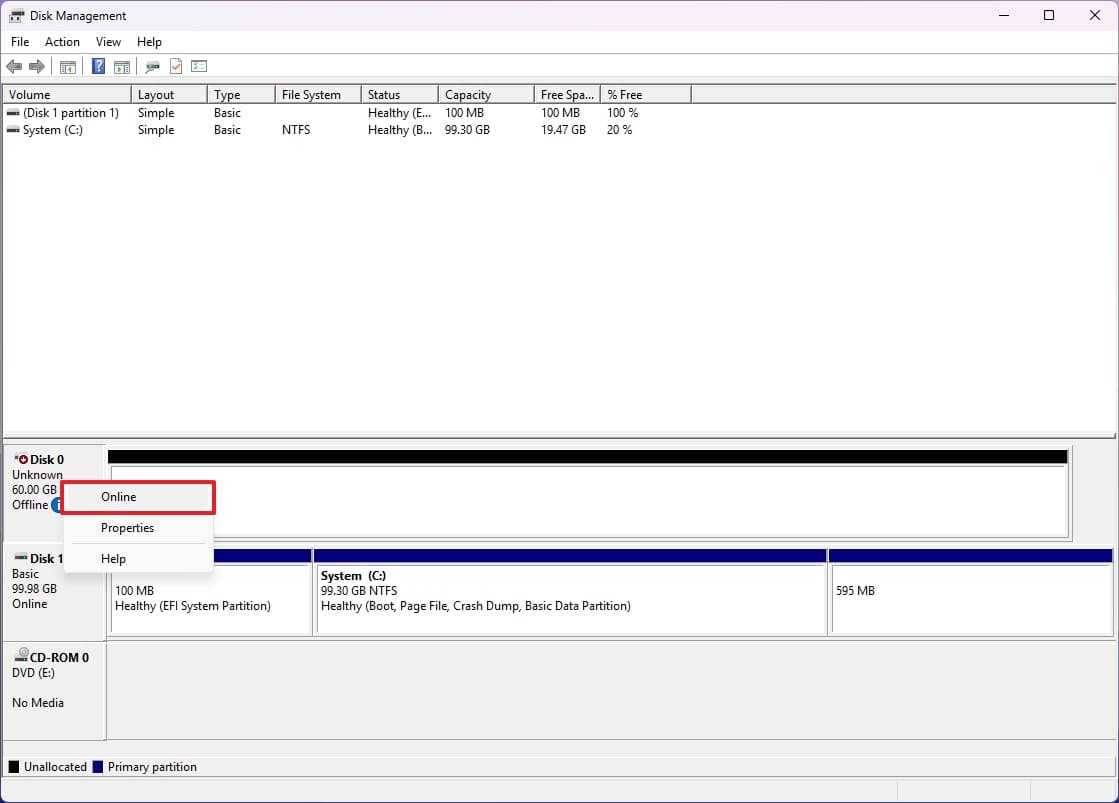
Right-click the disk with the “Offline label” and select the
Online
option.
(Image credit: Mauro Huculak)
Once you complete the steps, the drive and data should now be accessible from File Explorer.
In the case that the storage was offline and never configured, continue with the steps below to initialize it.
Initialize new drive
To initialize a hard drive on Windows 11, use these steps:
-
Open
Start
. -
Search for
Disk Management
and click the top result to open the app. -
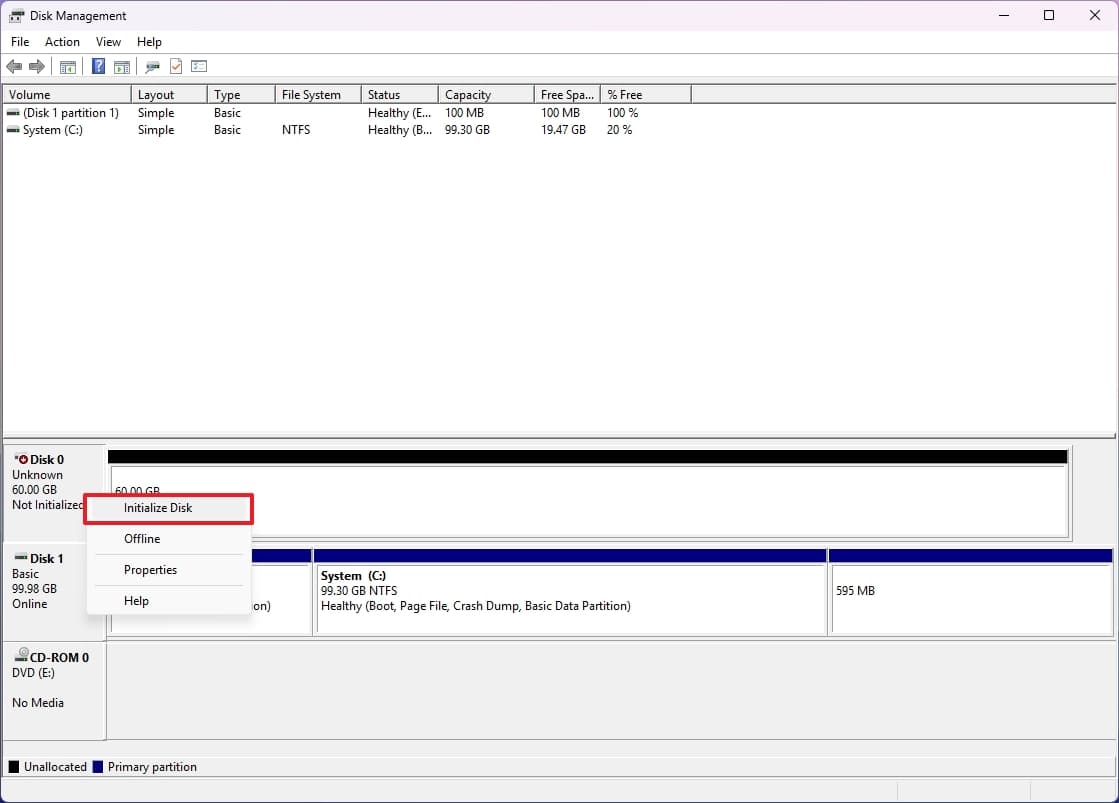
Right-click the disk with the “Unknown” label and select the
Initialize Disk
option.
(Image credit: Mauro Huculak)
- Check the drive to initialize under the “Select disks” section.
-
Select the
“GPT (GUID Partition Table)”
option.
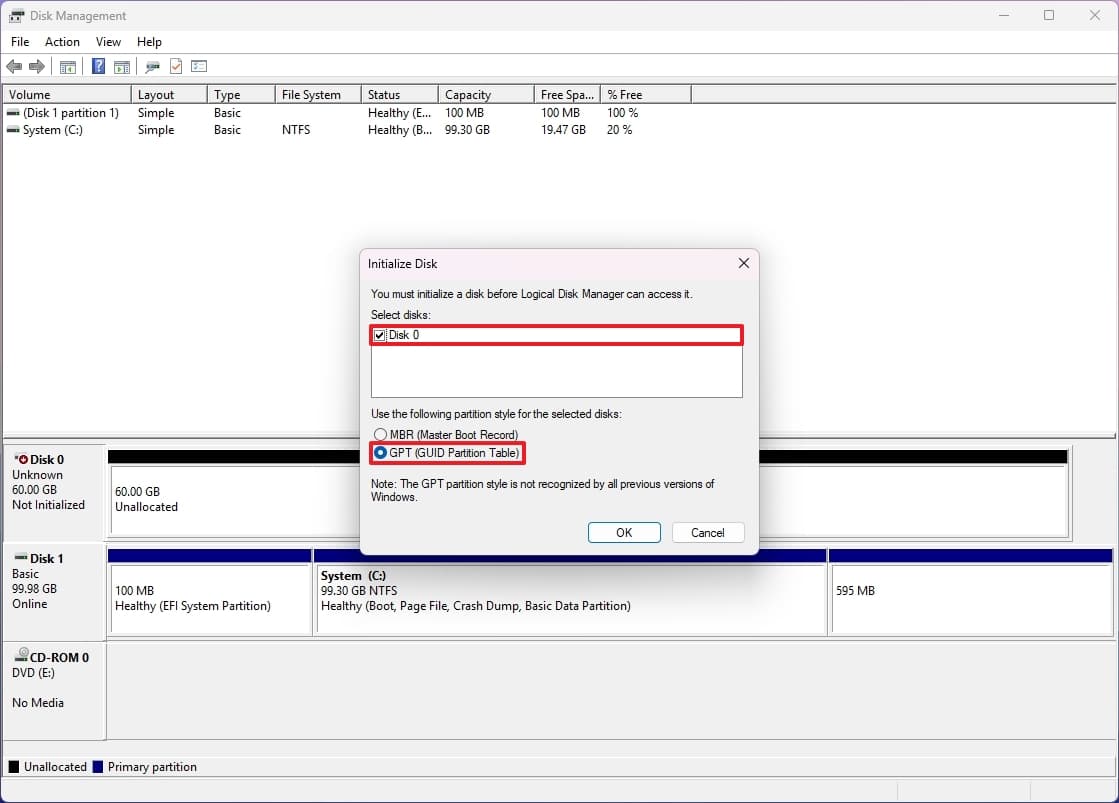
(Image credit: Mauro Huculak)
-
Click the
OK
button.
After completing the steps, this process will wipe out the drive’s contents and prepare it to be formatted if the drive was never initialized.
Configure drive letter
When the hard drive is online and initialized and does not appear in the system, it could be for two reasons: the storage device does not include a drive letter, or if it was configured to another computer, the system may be trying to assign the same drive letter already assigned to another device.
To assign a drive letter on Windows 11, use these steps:
-
Open
Start
. -
Search for
Disk Management
and click the top result to open the app. -
Right-click the partition on the hard drive without a drive letter and select the
“Change Drive Letter and Paths”
option.
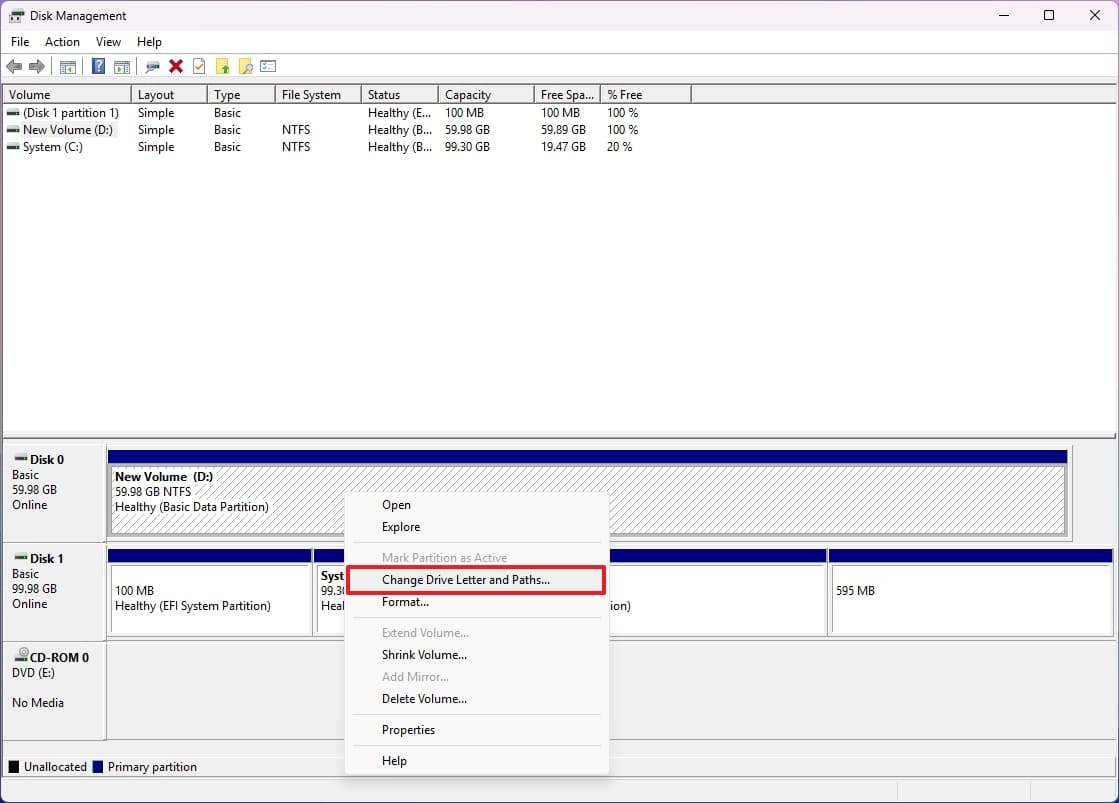
(Image credit: Mauro Huculak)
-
Click the
Add
button. -
Select the
“Assign the following driver letter”
option. - Choose the drive letter.
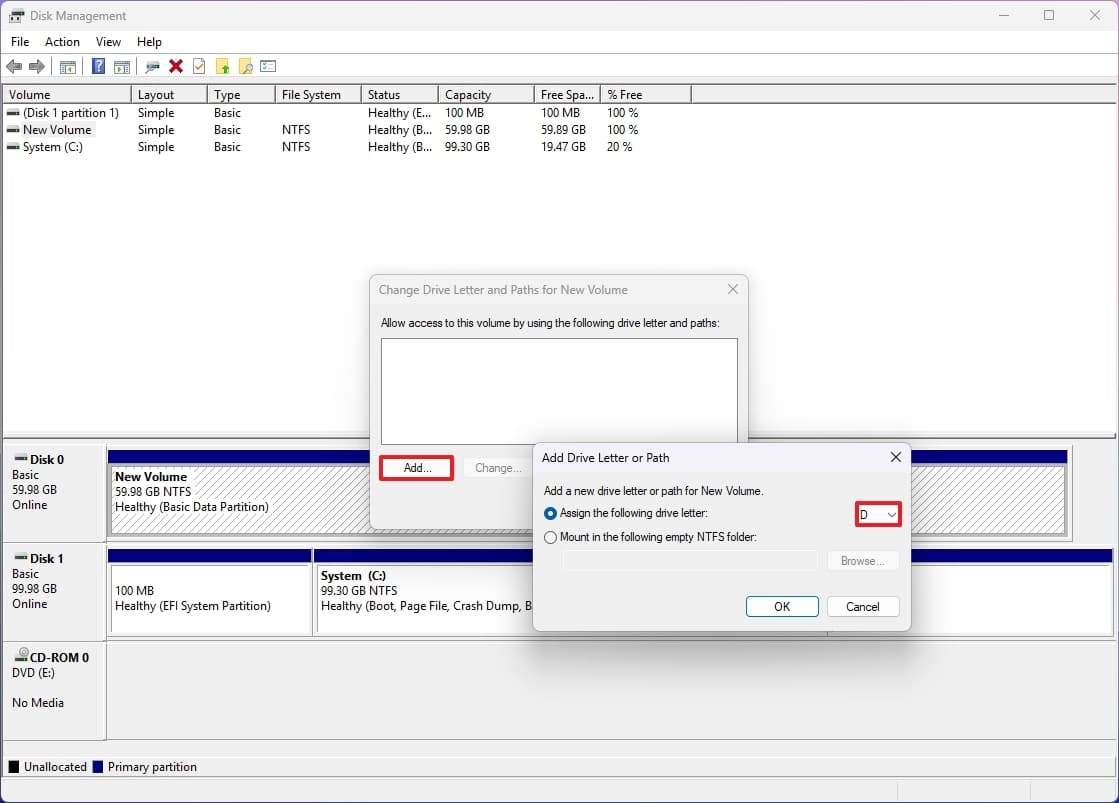
(Image credit: Mauro Huculak)
-
Click the
OK
button.
After you complete the steps, the data should now be accessible on Windows 11.
Configure new partition
If the drive is online and initialized, it may not have a partition. You can resolve this issue by creating and formatting a partition and assigning a letter.
To configure a hard drive to appear on File Explorer, use these steps:
-
Open
Start
. -
Search for
Disk Management
and click the top result to open the app. -
Right-click the partition on the drive and select the
“New Simple Volume”
option.
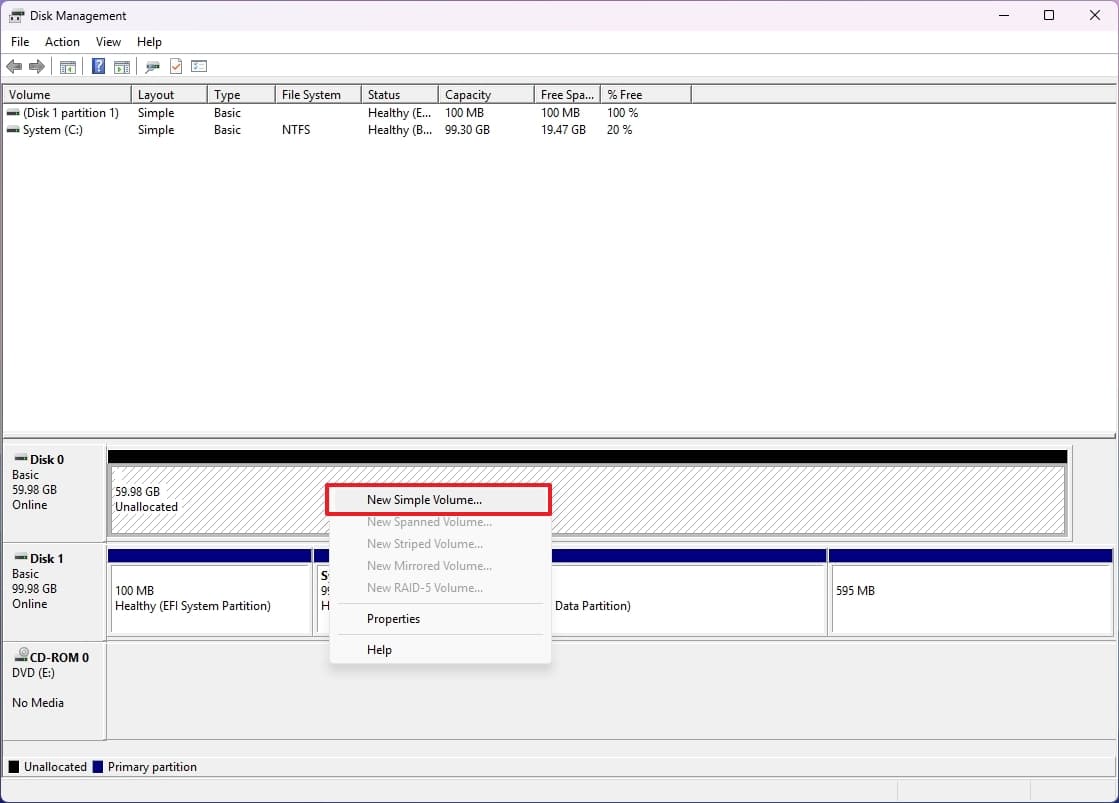
(Image credit: Mauro Huculak)
-
Click the
Next
button. -
Click the
Next
button to use the space for the partition, or specify the size using the
“Simple volume size in MB”
option.
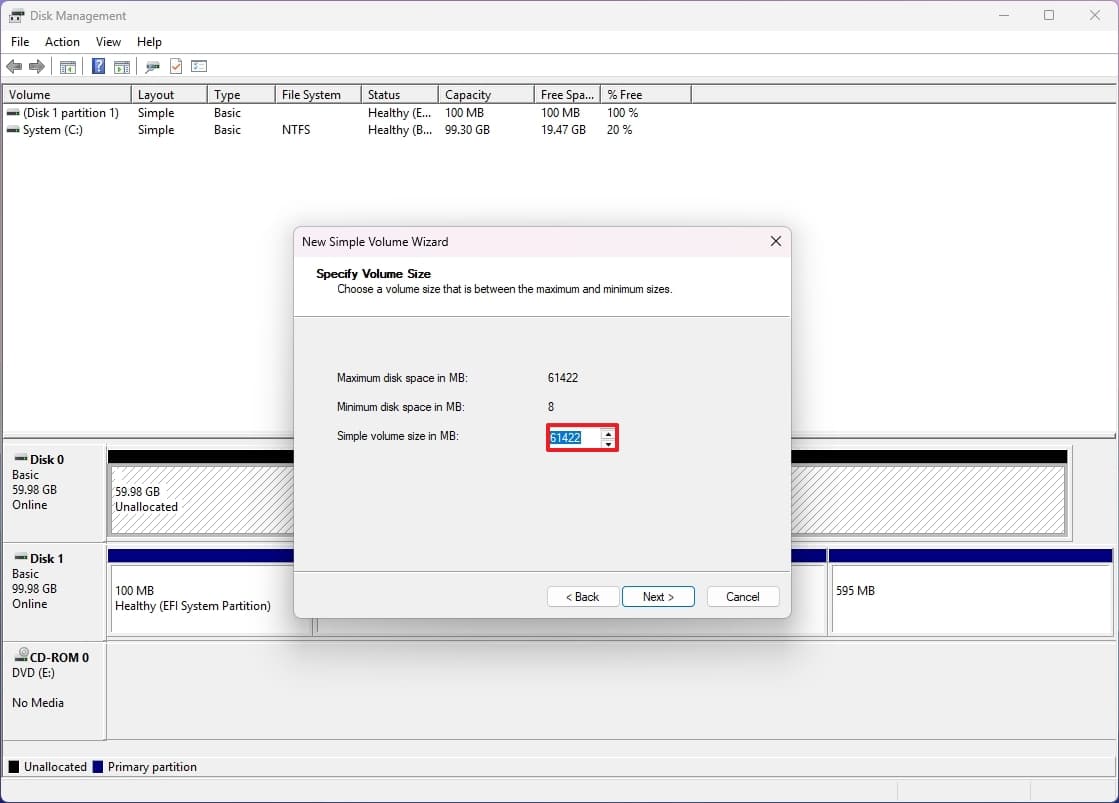
(Image credit: Mauro Huculak)
-
Click the
Next
button. -
Select the
“Assign the following driver letter”
option. - Choose the drive letter.
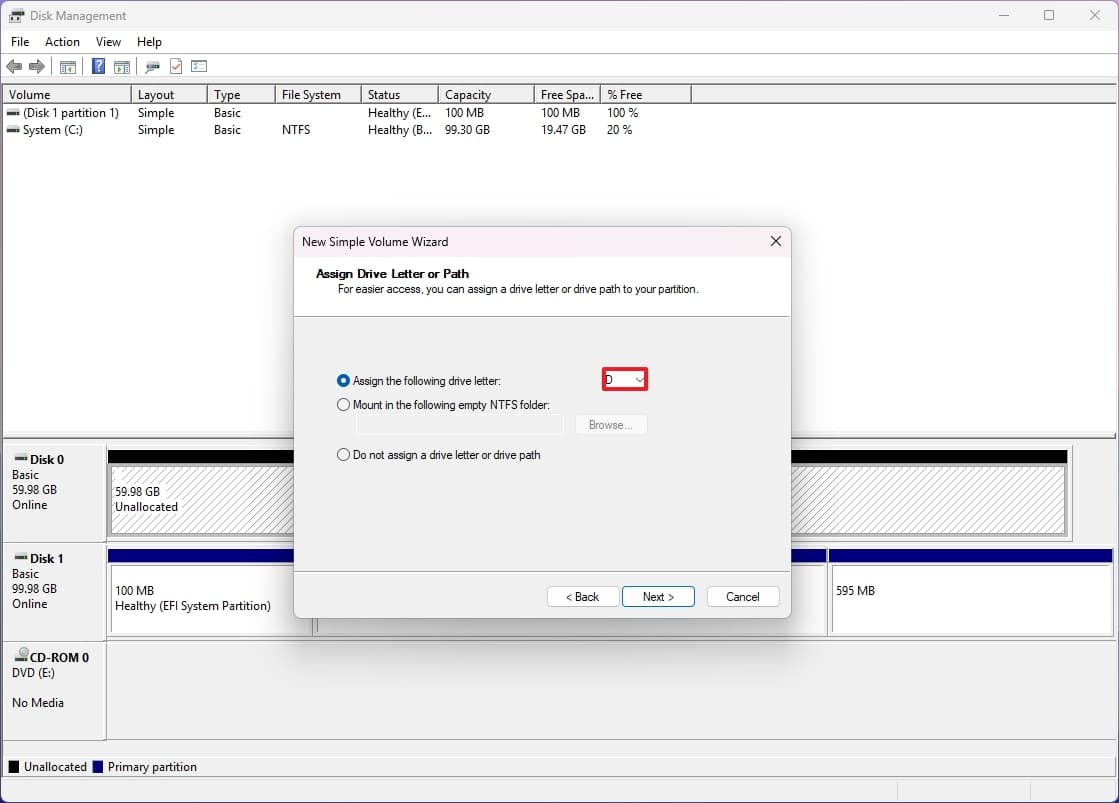
(Image credit: Mauro Huculak)
-
Click the
Next
button. -
Select the
“Format this volume with the following settings”
option. -
Choose the
NTFS
option from the “File system” setting. -
Select the
Default
option from the “Allocation unit” setting. - In the “Volume label” field, confirm a descriptive name for the drive.
-
Check the
“Perform a quick format”
option.
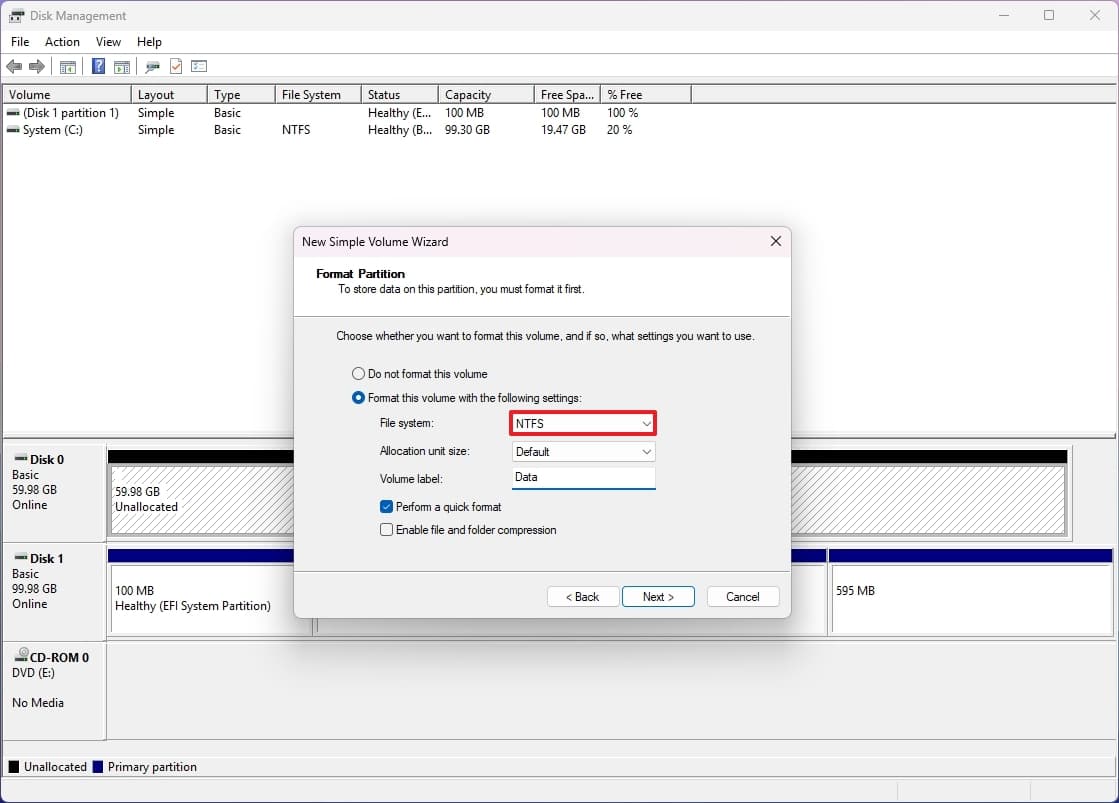
(Image credit: Mauro Huculak)
-
Click the
Next
button. -
Click the
Finish
button.
Once you complete the steps, the hard drive should be accessible from File Explorer on Windows 11.
How to fix missing storage on File Explorer via Settings app
The “Disks & Volumes” settings page works similarly to the “Disk Management” app. The difference is that the modern version of the experience doesn’t have every option, as the legacy version and workflow are slightly different.
Initialize new drive
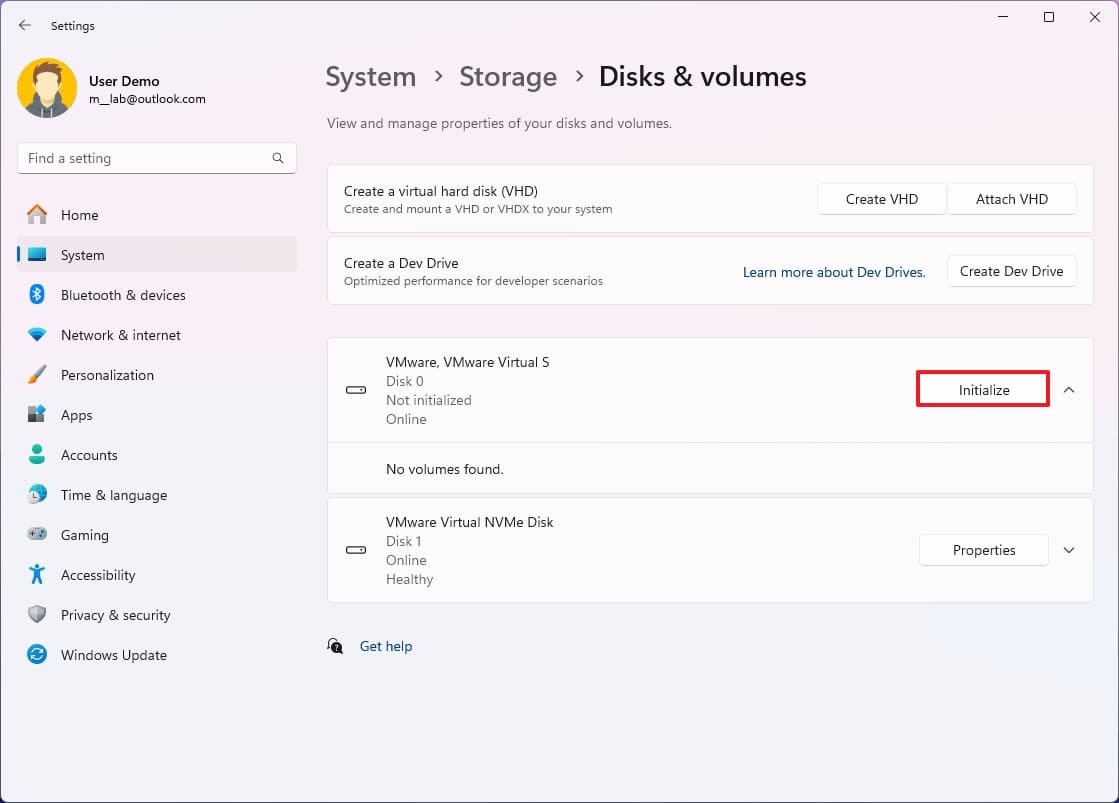
To initialize a hard drive through the Settings app, use these steps:
-
Open
Settings
. -
Click on
System
. -
Click the
Storage
page on the right side. -
Click
“Advanced storage settings”
under the “Storage management” section. -
Click on
Disks & Volumes
.
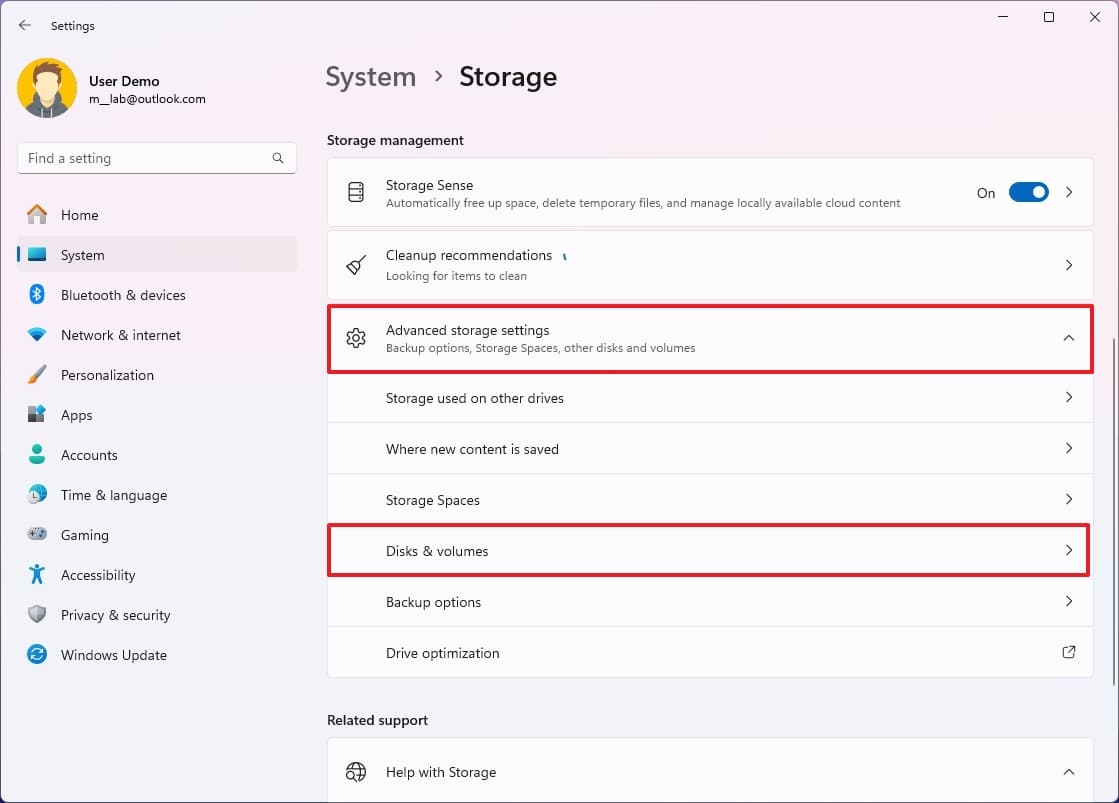
(Image credit: Mauro Huculak)
-
Click the
Initialize
button on the drive.
(Image credit: Mauro Huculak)
-
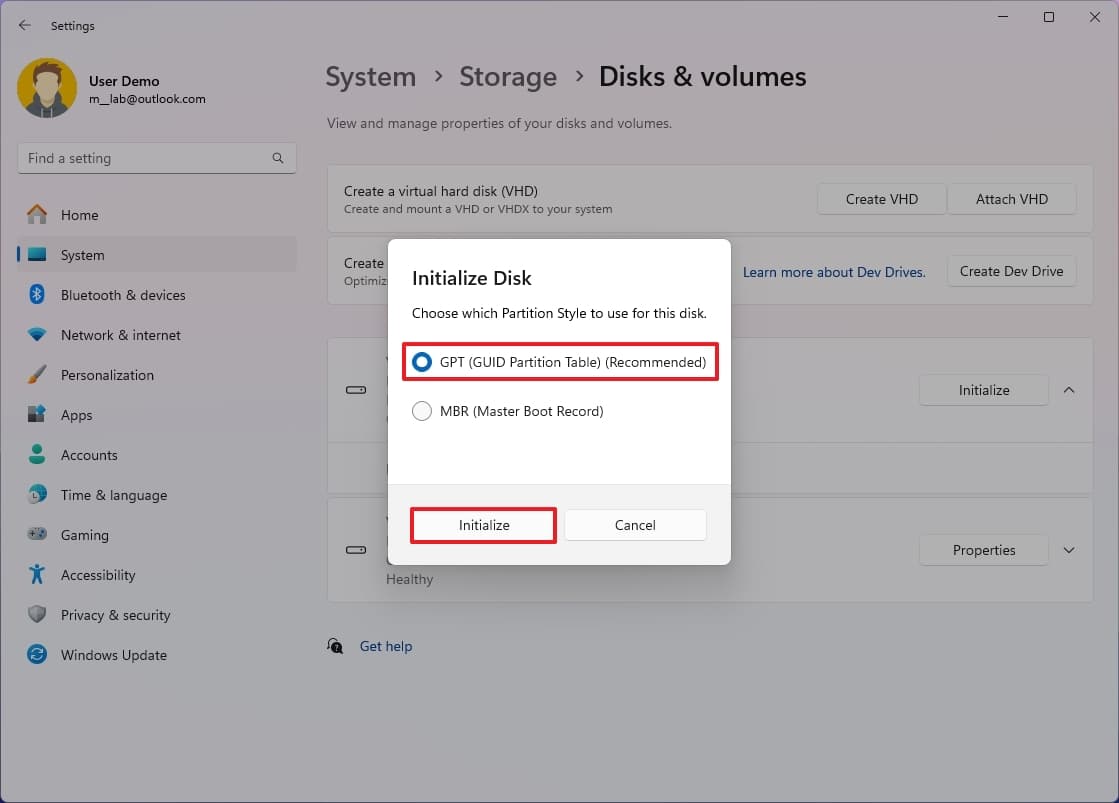
Choose the
“GPT (GUID Partition Table)”
option. -
Click the
Initialize
button.
(Image credit: Mauro Huculak)
After you complete the steps, this
action
will delete everything from the drive and make the storage ready to store a new partition.
Create new partition
To create a new partition on the drive, use these steps:
-
Open
Settings
. -
Click on
System
. -
Click the
Storage
page on the right side. -
Click
“Advanced storage settings”
under the “Storage management” section. -
Click on
Disks & Volumes
.
(Image credit: Mauro Huculak)
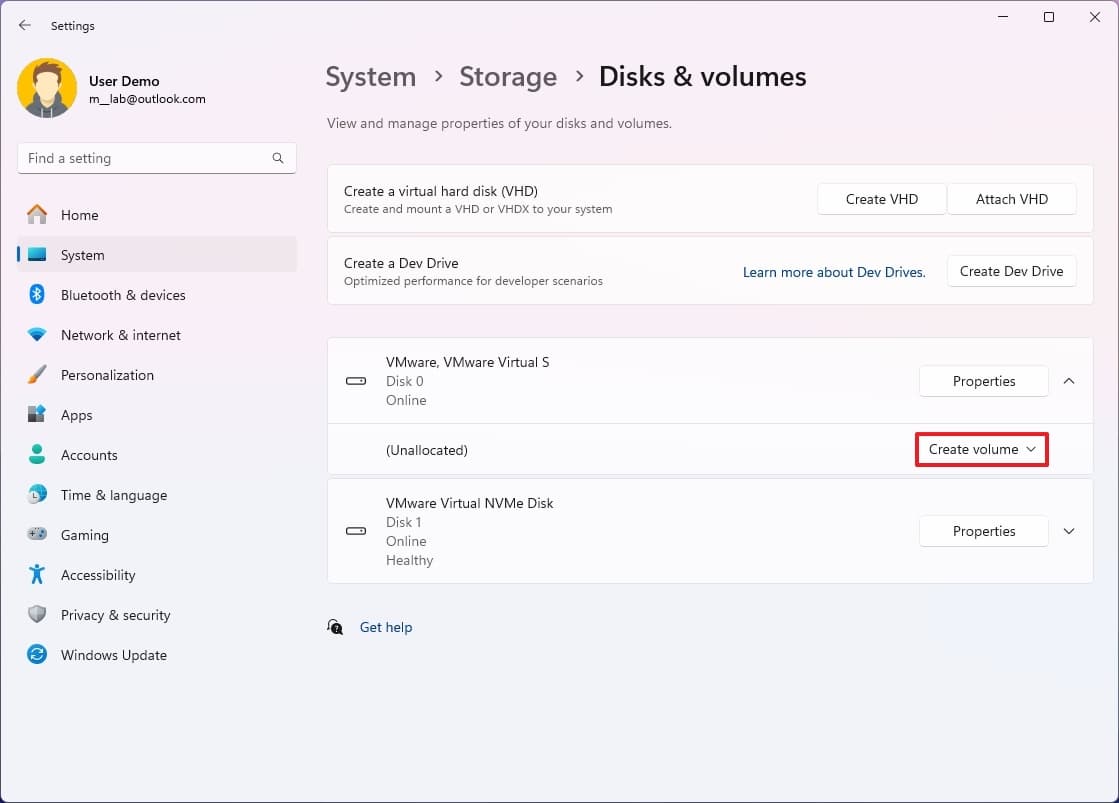
- Click on the drive to configure.
-
Choose the
“Create Simple Volume”
option from the unallocated space.
(Image credit: Mauro Huculak)
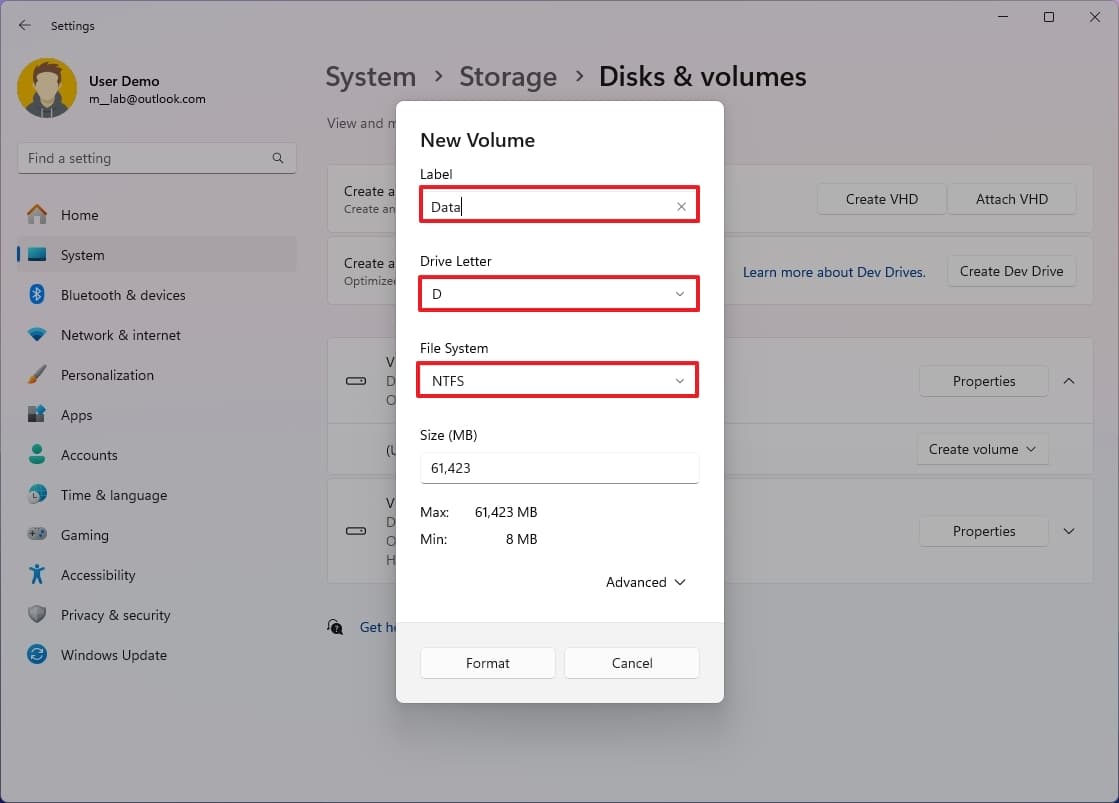
- Confirm a name for the drive in the “Label” setting.
- Choose the drive letter from the “Drive Letter” setting.
-
Select the
NTFS
option from the “File System” setting.
(Image credit: Mauro Huculak)
- Confirm a name for the drive in the “Label” setting.
- Choose the drive letter from the “Drive Letter” setting.
-
Select the
NTFS
option from the “File System” setting. - Continue with the default settings to use the entire drive to create the partition.
-
Click the
Format
button.
Once you complete the steps, the drive should appear on File Explorer.
Change drive to online
You can only bring the drive online if the device was previously configured on the same computer.
To bring a drive online from the Settings app, use the following steps:
-
Open
Settings
. -
Click on
System
. -
Click the
Storage
page on the right side. -
Click
“Advanced storage settings”
under the “Storage management” section. -
Click on
Disks & Volumes
.
(Image credit: Mauro Huculak)
-
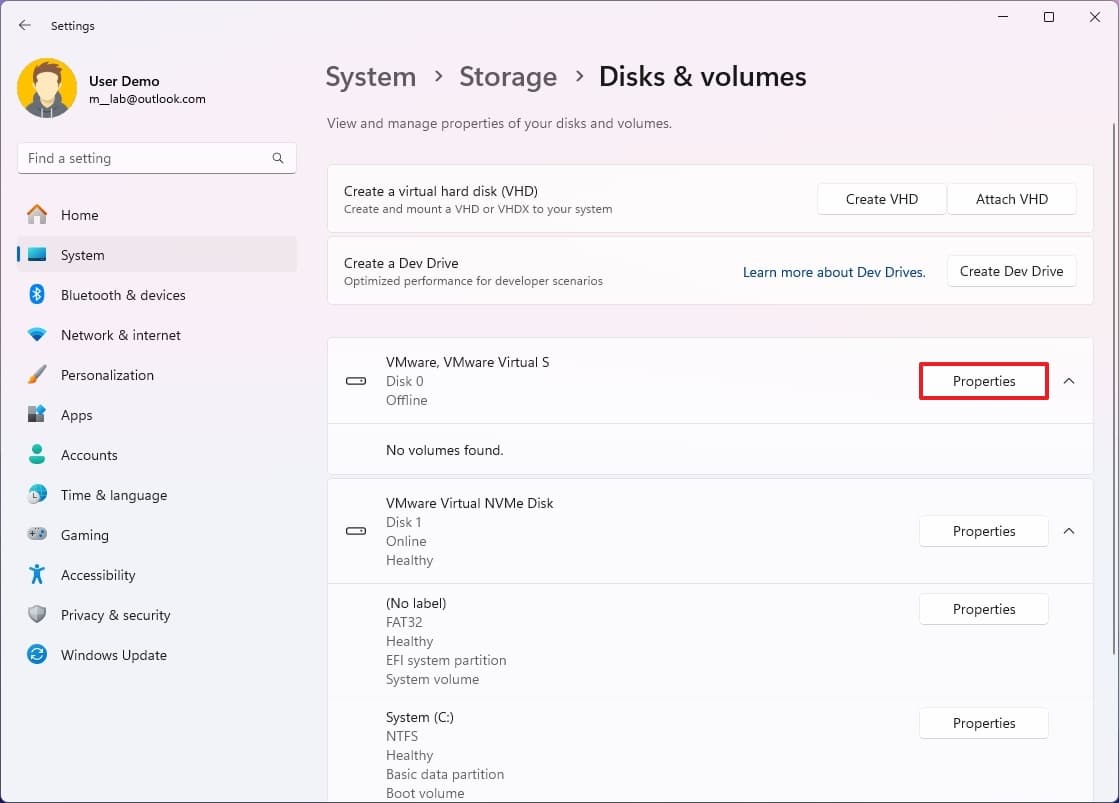
Click the
Properties
button for the drive to bring online.
(Image credit: Mauro Huculak)
-
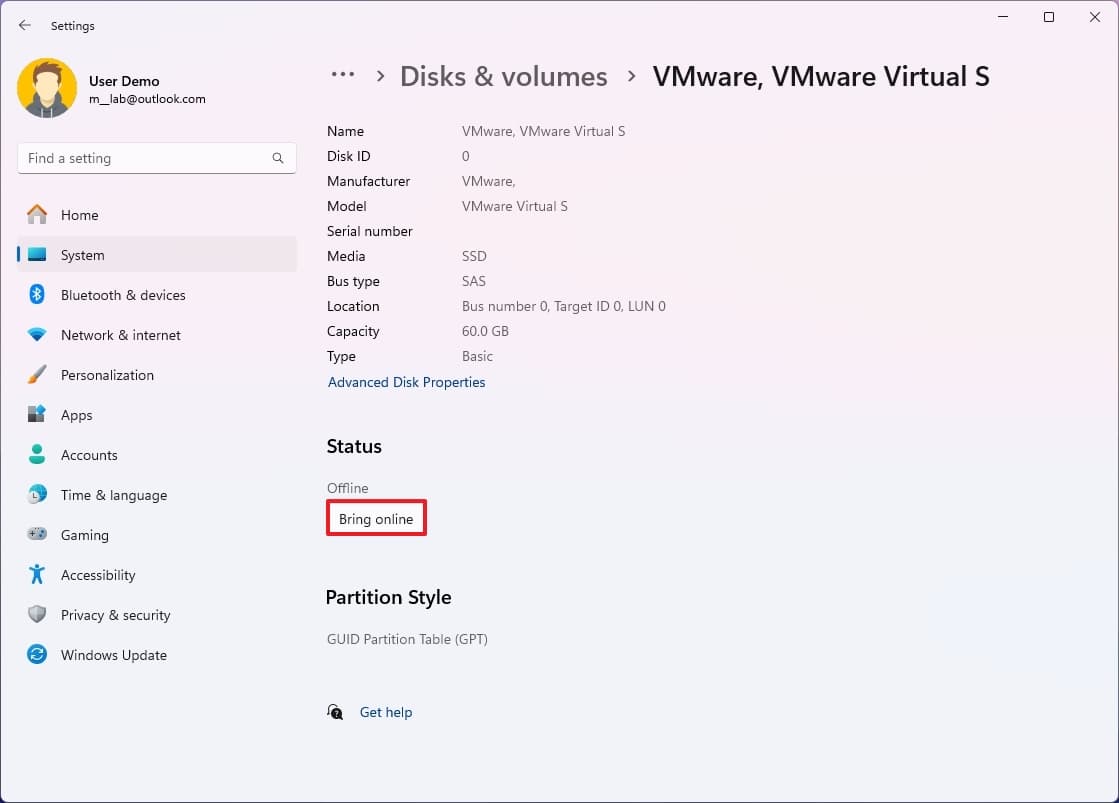
Click the
Bring online
button under the “Status” section.
(Image credit: Mauro Huculak)
After you complete the steps, the hard drive should be accessible from the “This PC” page on File Explorer.
Configure drive letter
To assign a drive letter to a drive to make the storage available on Windows 11, use these steps:
-
Open
Settings
. -
Click on
System
. -
Click the
Storage
page on the right side. -
Click
“Advanced storage settings”
under the “Storage management” section. -
Click on
Disks & Volumes
.
(Image credit: Mauro Huculak)
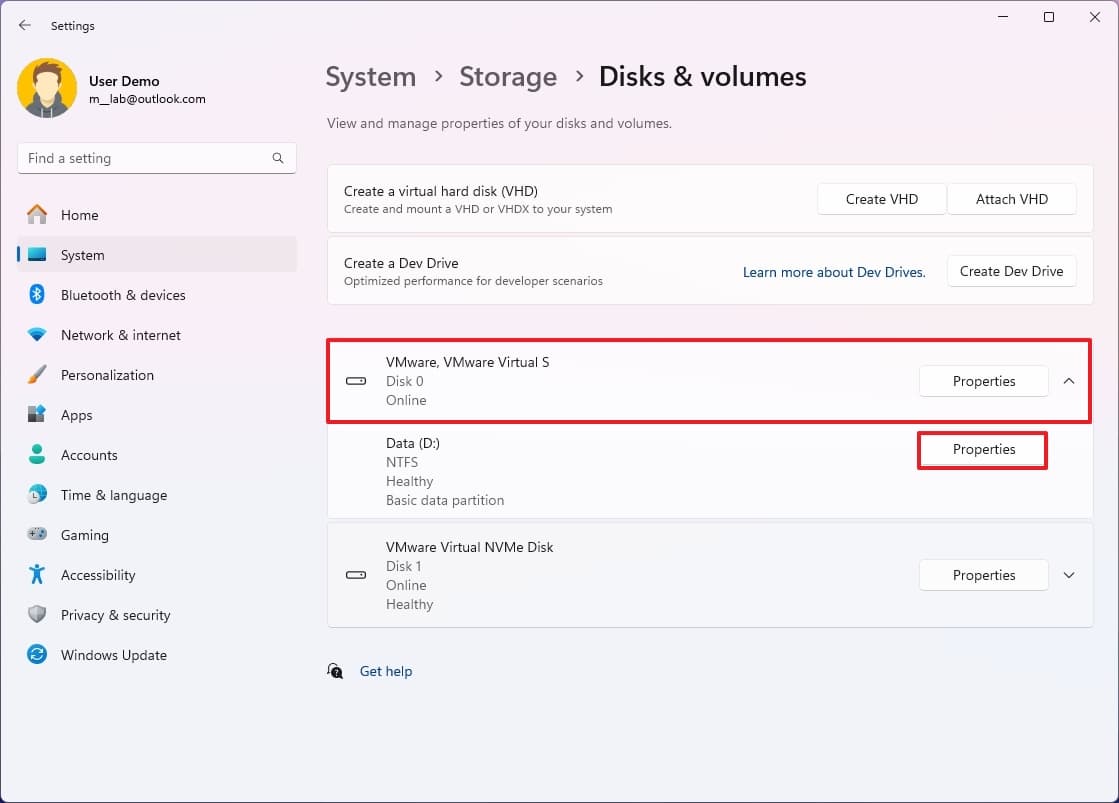
- Click on the drive to configure.
-
Click the
Properties
button for the partition (not the drive).
(Image credit: Mauro Huculak)
-
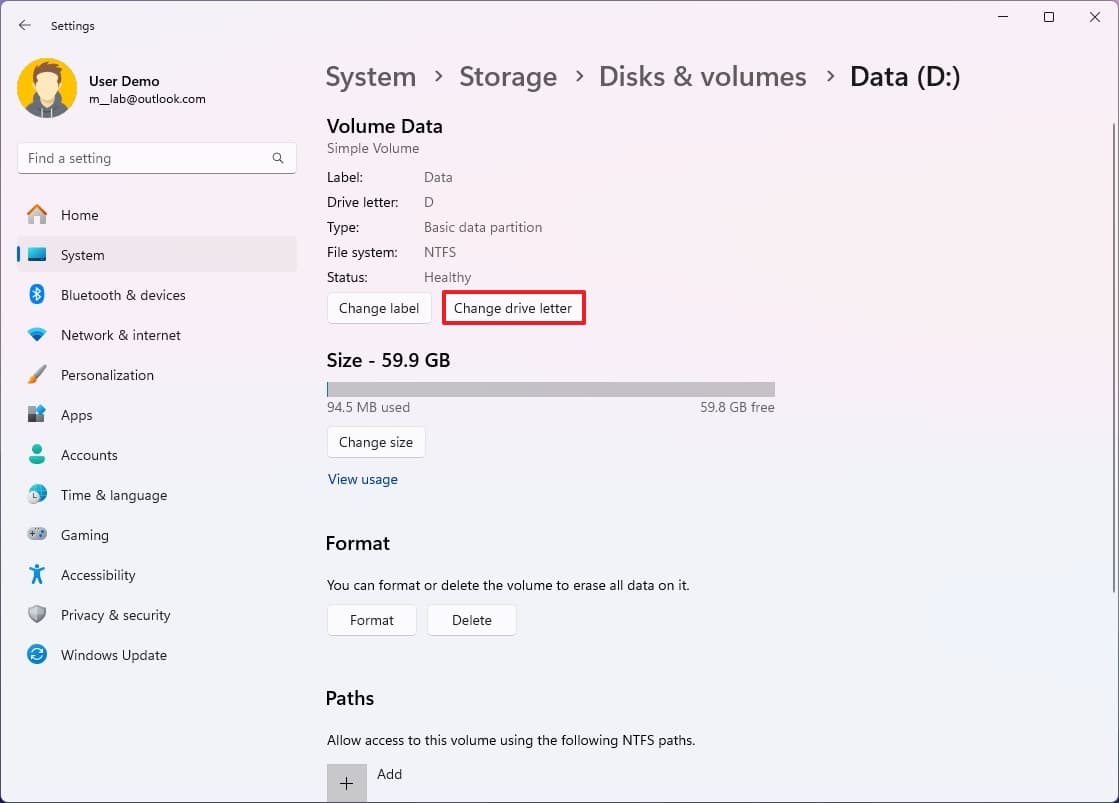
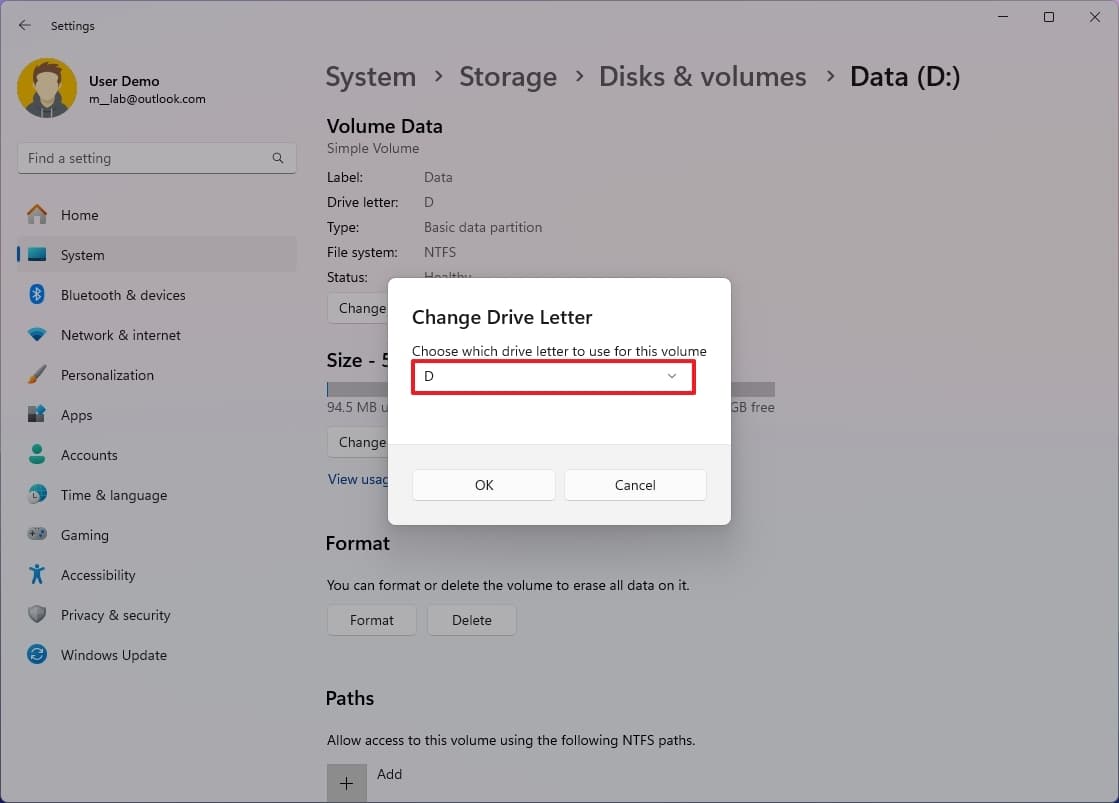
Click the
“Change drive letter”
button.
(Image credit: Mauro Huculak)
- Select the drive letter to make the storage accessible.
-
Click the
OK
button.
(Image credit: Mauro Huculak)
Once you complete the steps, the computer’s drive data should be accessible using File Explorer.
How to fix missing storage on File Explorer via driver
update
If the problem is related to a device driver, you should reinstall or update the driver to the latest version to resolve the issue.
Reinstall storage driver
To reinstall the storage driver on Windows 11, use these steps:
-
Open
Start
. -
Search for
Device Manager
and click the top result to open the app. -
Expand the
Disk drives
branch. -
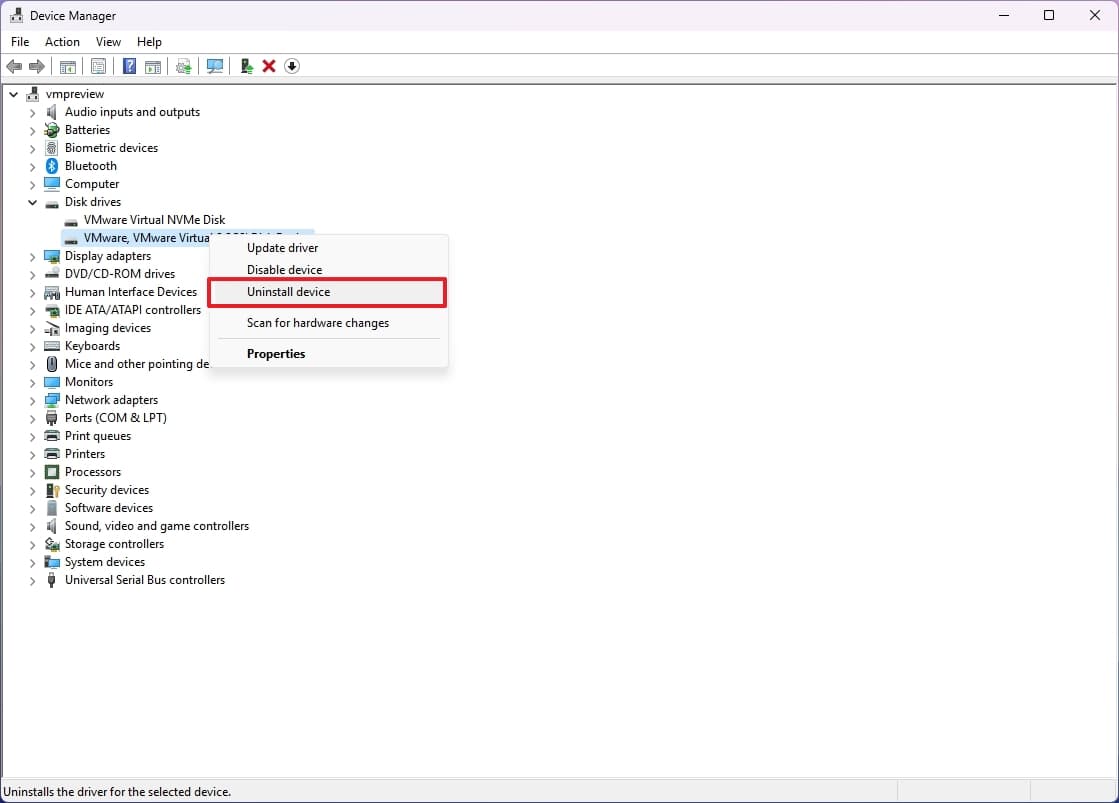
Right-click the hard drive in question and select the
Uninstall device
option.
(Image credit: Mauro Huculak)
-
Click the
Uninstall
button. - Restart the computer
Once you complete the steps, the system should reinstall the driver automatically, and you should now be able to access the data on the drive from File Explorer.
Update storage driver
To update the storage driver, use these steps:
-
Open
Settings
. -
Click on
Windows Update
. -
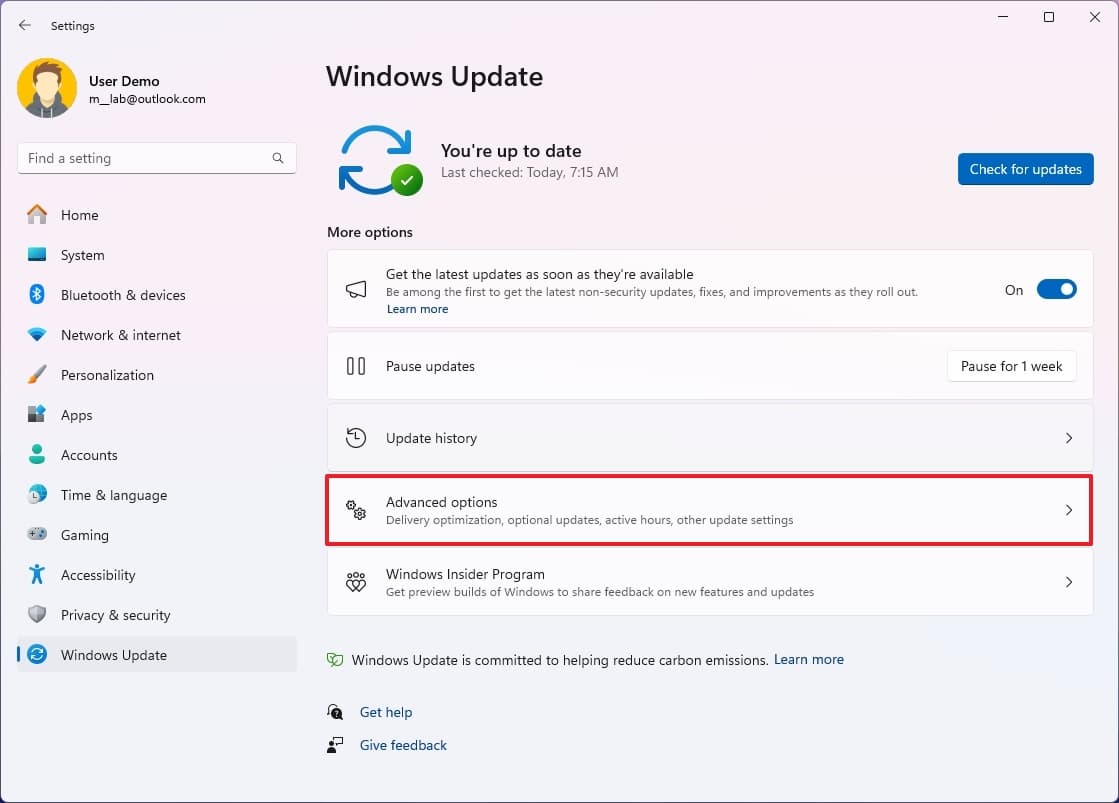
Click the
Advanced options
page on the right side.
(Image credit: Mauro Huculak)
-
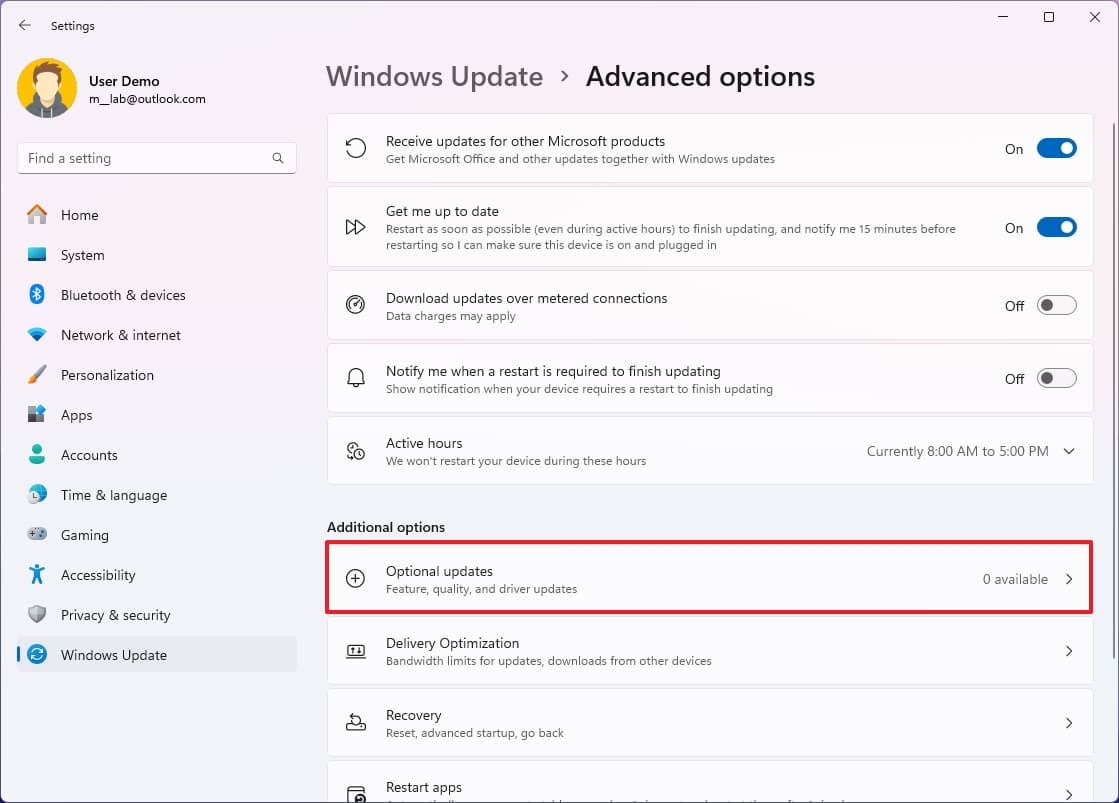
Click the
Optional updates
settings from the “Additional options” section.
(Image credit: Mauro Huculak)
- Choose the driver update (if applicable).
-
Click the
Download &
install
button.
After you complete the steps, the driver will download and install it on the computer to make the storage accessible.
It’s important to note that it could also be a problem with storage firmware. If so, you must check your manufacturer support website to download their tool to update the hard drive. (This is only recommended if a known issue and a new firmware update becomes available to resolve the problem.)
How to fix missing storage on File Explorer via Command Prompt
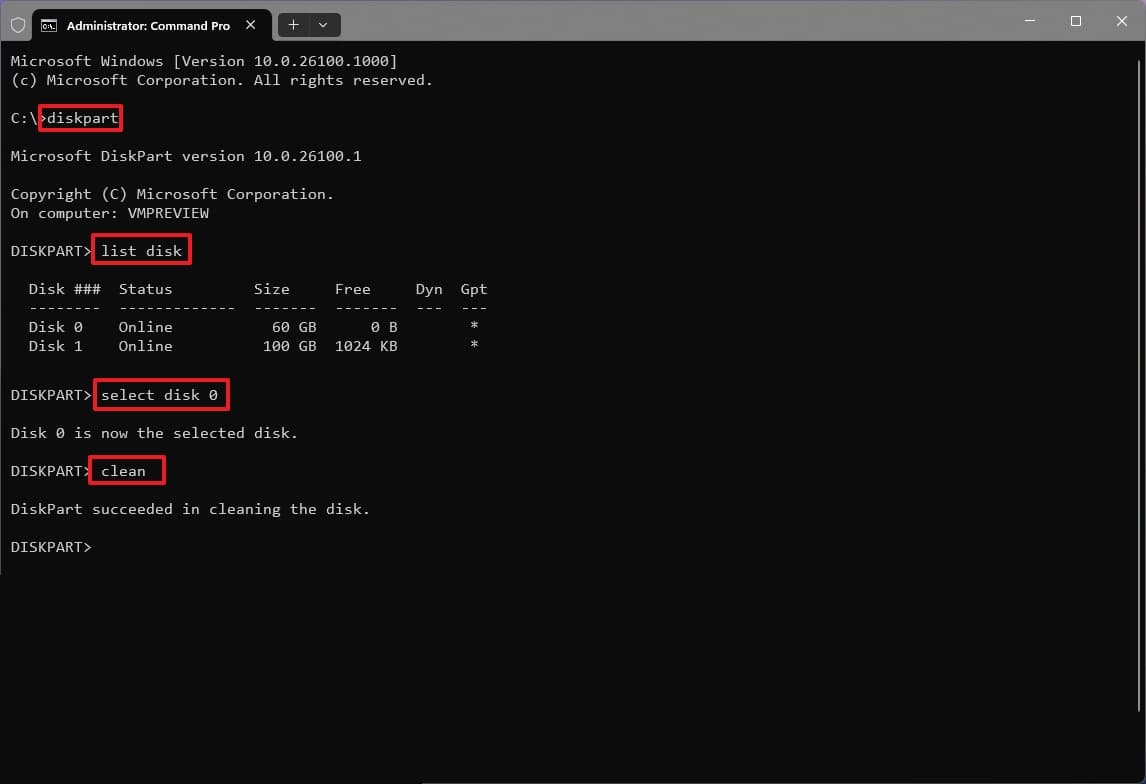
If, after trying the above recommendations, it’s still not possible to access the storage, you can use the DiskPart command tool to completely clean the drive.
To use DiskPart with Command Prompt to clean a drive, use these steps:
-
Open
Start
. -
Search for
Command Prompt
, right-click the top result, and select the
Run as administrator
option. -
Type the following command to start diskpart and press
Enter
:
diskpart
-
Type the following command to list the available disks and press
Enter
:
list disk
-
Type the following command to select the drive not showing up in File Explorer and press
Enter
:
select disk 1
- In the command, select the correct drive. Otherwise, you may end up deleting the data in the wrong partition.
-
Type the following command to everything erase the drive and press
Enter
:
clean
(Image credit: Mauro Huculak)
-
Warning:
The command will delete everything, including data, partition, type, and the drive will appear blank with the label unknown and not initialized.
-
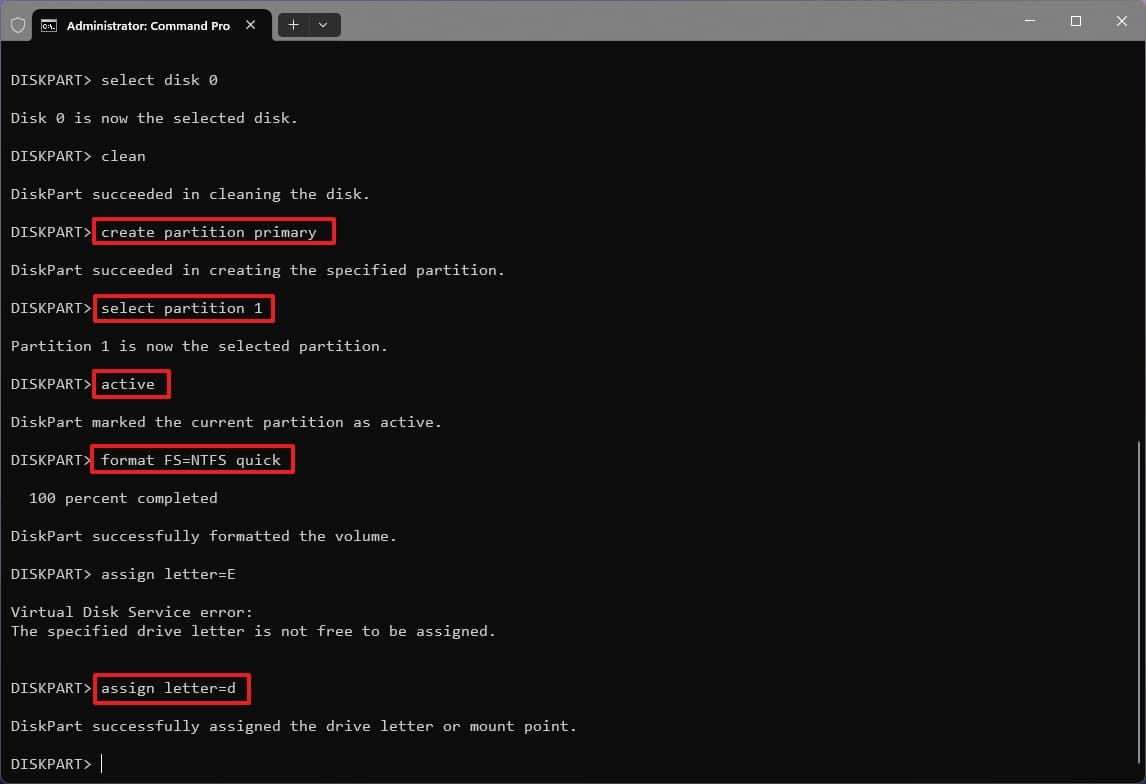
Type the following command to create a partition using the available space and press
Enter
:
create partition primary
-
Type the following command to select the newly created partition and press
Enter
:
select partition 1
-
Type the following command to set the partition as active and press
Enter
:
active
-
Type the following command to format the partition and press
Enter
:
format FS=NTFS
-
Type the following command to assign a drive letter and press
Enter
:
assign letter=D
(Image credit: Mauro Huculak)
In the command, change
“D”
for another drive letter not already in use.
-
Type the following command to close diskpart and press
Enter
:
exit
Once you complete the steps, the drive will be formatted with the specified settings, and it should now appear in File Explorer and across applications.
More resources
For more helpful articles, coverage, and answers to common questions about Windows 10 and Windows 11, visit the following resources:
VIA:
WindowsCentral

0